Overview
SupportLogic provides the ability to view and export historical case data, including both open and closed cases. This helps teams analyze past interactions, track trends, and gain insights across specific accounts or virtual accounts.
Steps to Access Historical Case Data
- Navigate to: Analytics → Text Analytics
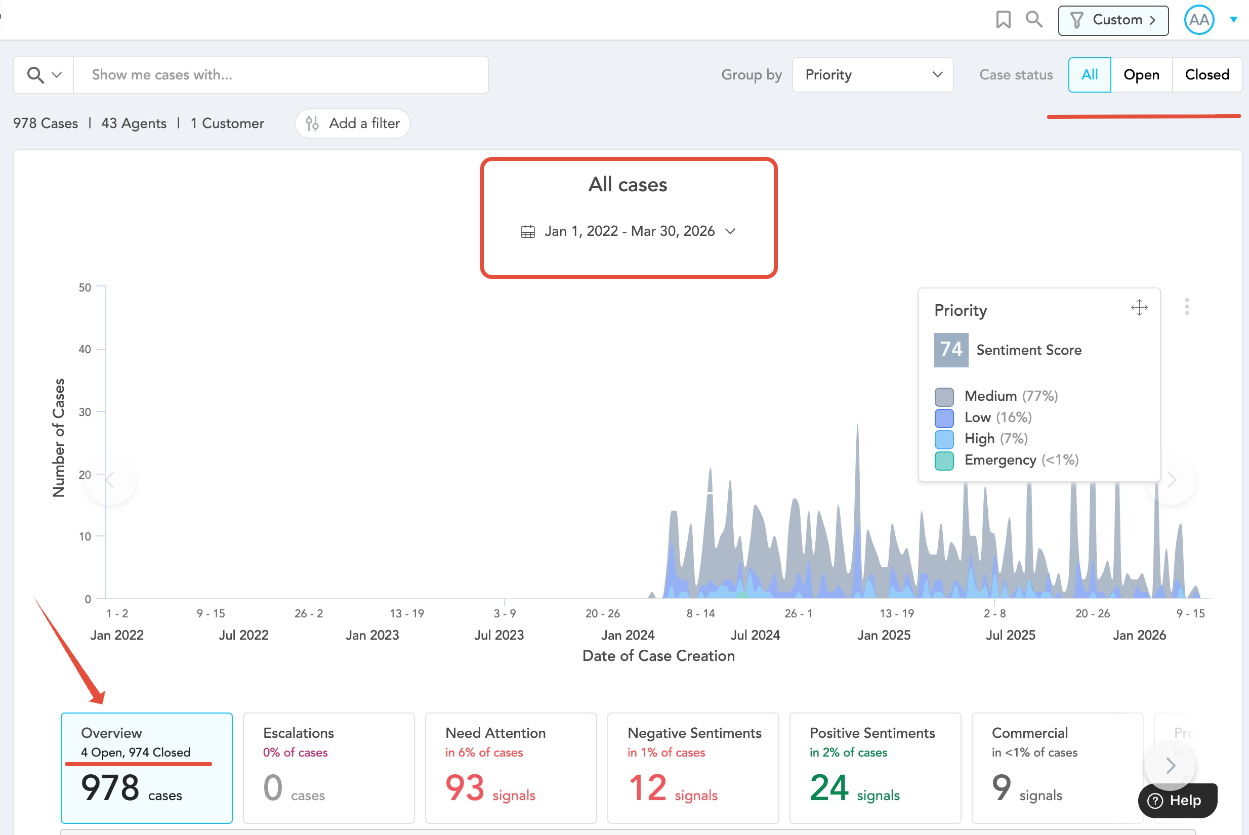
- Use the Case Status filter (top right) to include:
- Open cases
- Closed cases
- Or All (both), based on the requirement
- Apply relevant filters:
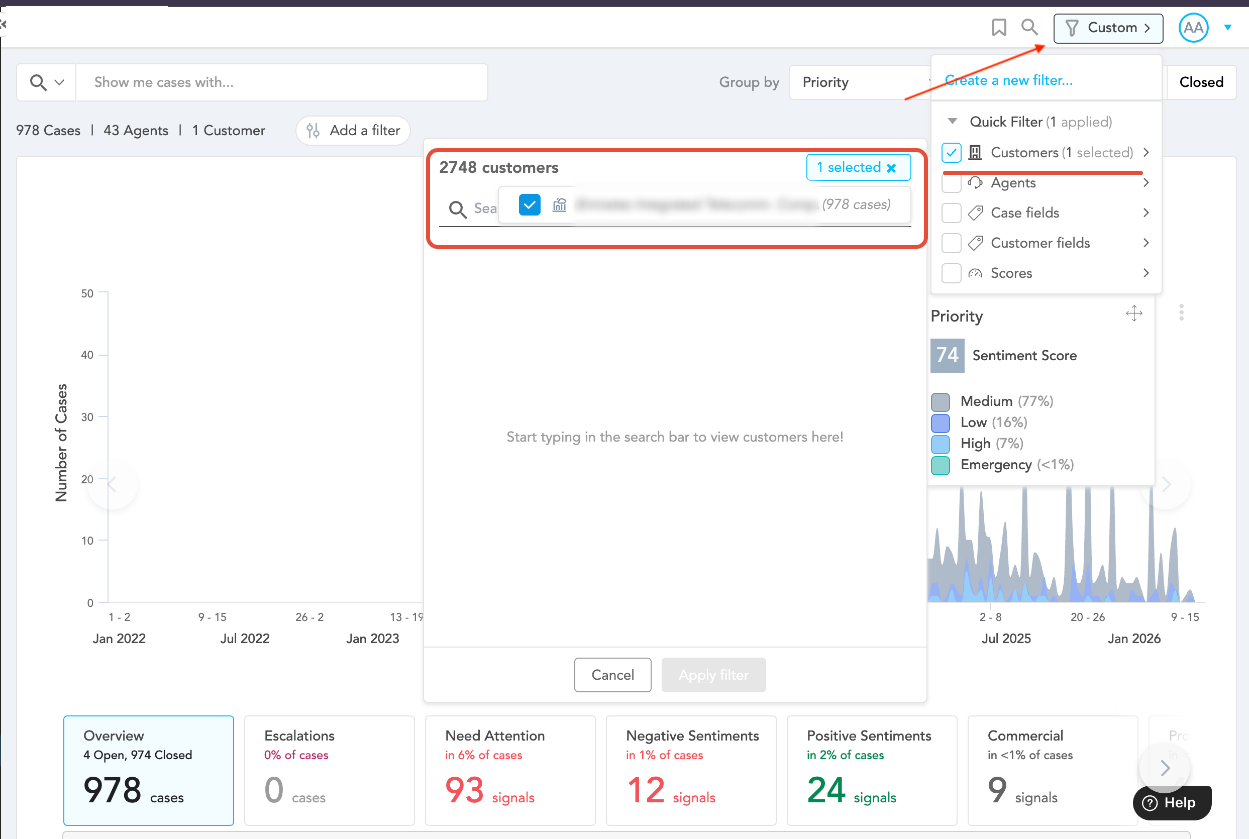
- Global Filters → For account, virtual account etc.
- Dynamic Filters → For more granular case-level filtering
- Select the required date range.
- Click Apply/Save to load the results.
- The filtered case data will be displayed in the results section below.
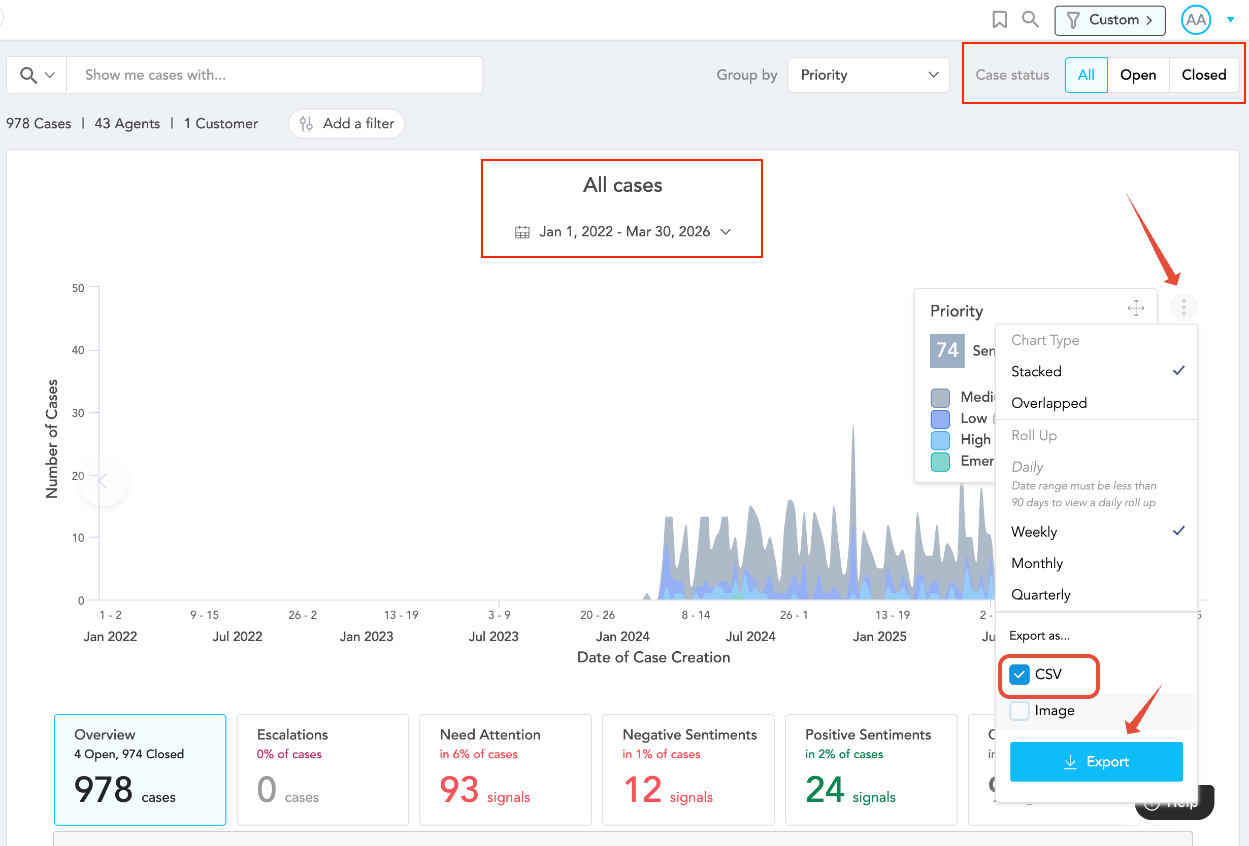
Please refer to the screenshots attached here for guidance.
Exporting Case Data
To download the data:
- Click on the vertical three-dot menu (⋯) in the results section
- Check CSV and Export to CSV
- The report will be downloaded for offline analysis
Use Cases
This approach can be used to:
- View all historical cases for a specific account or virtual account
- Analyze both open and closed cases together
- Perform trend analysis over a selected time period
- Export case data for reporting or audits.
Summary
- Historical case data is available in the Text Analytics page
- Supports filtering by status, account, and date range
- Includes both open and closed cases
- Data can be exported as a CSV file
If further assistance is needed with accessing or exporting case data, please contact SupportLogic Support.
Was this article helpful?
That’s Great!
Thank you for your feedback
Sorry! We couldn't be helpful
Thank you for your feedback
Feedback sent
We appreciate your effort and will try to fix the article