New SupportHub – Overview and How to Use It1. What is the New SupportHub?
The New SupportHub is a redesigned workspace in SupportLogic Core SX where support engineers can view, collaborate on, and resolve cases in a single, streamlined experience.With this updated SupportHub, you can: See a refreshed layout for a cleaner, more intuitive case view Sortable, filterable timeline so one can quickly focus on the most relevant events Ability to edit the “To” field when replying, so you can adjust recipients without leaving SupportHub Add attachments at both case and comment level Add Annotations to the Collaboration tab @Mentions inside the Reply area to easily bring colleagues into the conversation and Insert hyperlinks in replies and supported custom fields Track active tasks and review workflows across modules (Core, Assign, Expand, Elevate) Use Gen AI–powered assistance (where enabled) to summarize cases and draft responses
2. Key Improvements in the New SupportHub
2.1 Updated LayoutThe New SupportHub introduces an updated UI that makes it easier to: Scan case details, customer information, and key signals View the timeline of all case activities in a single place Access tasks, reviews, and Gen AI tools without switching pages
The layout is designed to reduce clicks and provide a more complete view of each case for support engineers and managers. 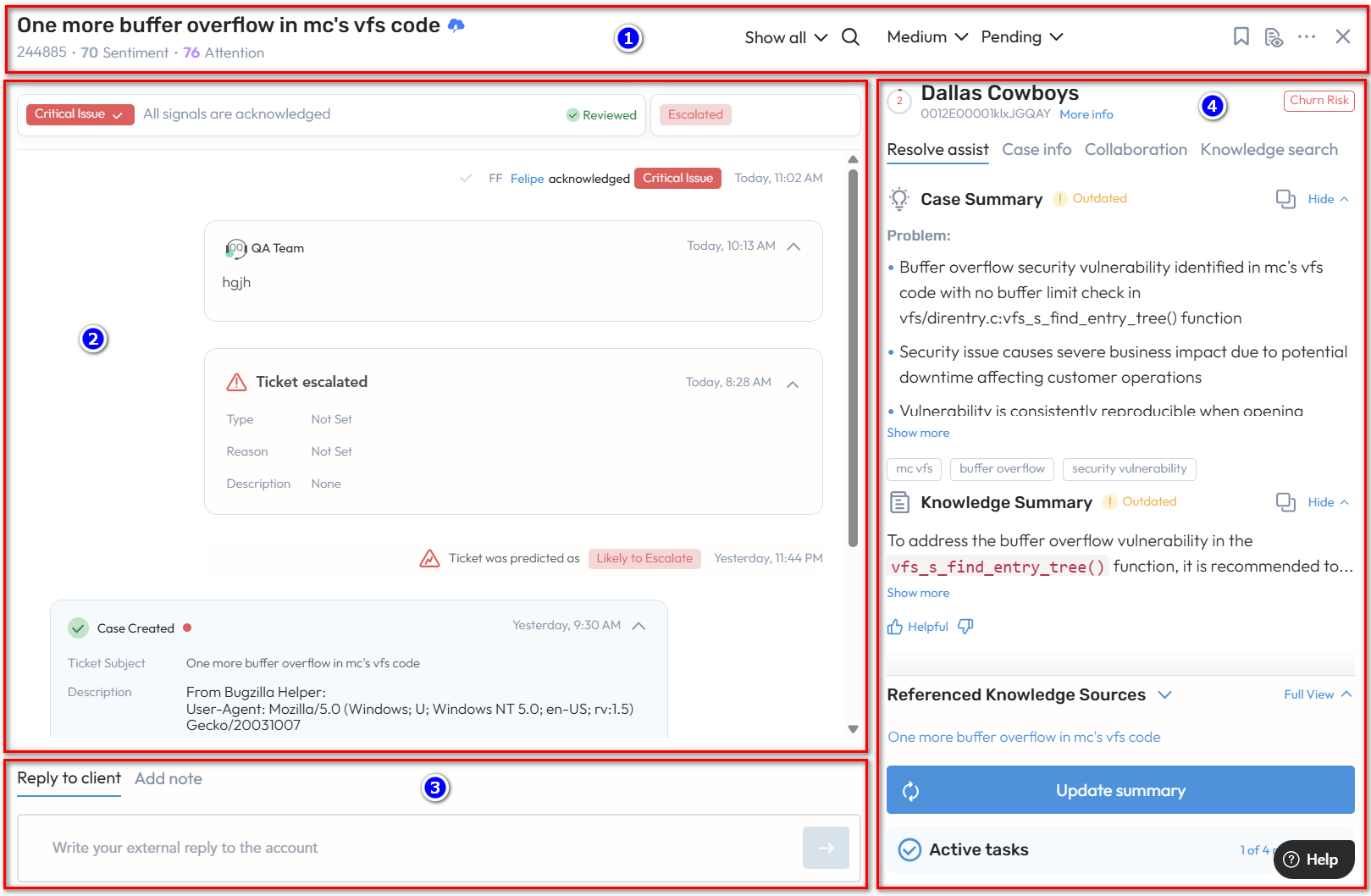
- Top screen area:
- Case subject + Case number
- Link to CRM
- Scores
- Case standard fields (Priority and Status)
- Search
- Timeline filters
- Case menu actions
- Mid-screen area:
- Signals, LTE predictions, Active escalations
- Timeline
- Bottom screen area:
- Response area, with Reply to customer and Add a case note
- Right panel
- Case info
- Collaborations
- Resolve Assist (Premium package)
- Knowledge search (Premium package)
- Workflows and actions panel
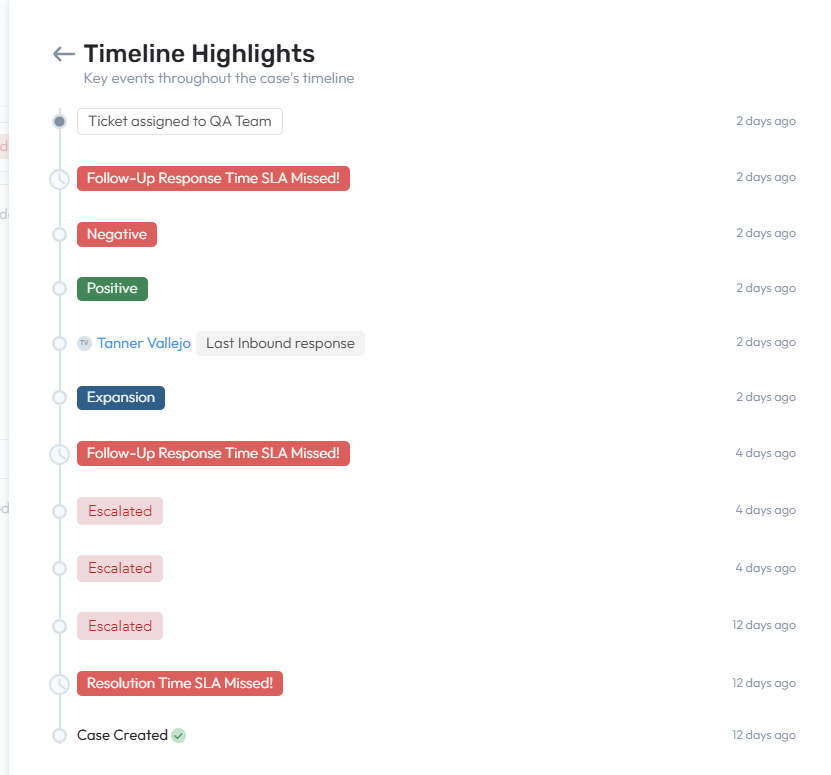
2.2 Timeline Enhancements (Sort & Filter)The Timeline section now supports: Sorting events (for example, newest to oldest) Filtering by activity type (such as Inbound messages, internal notes, Outbound messages, Activity Log, etc.)
This helps you quickly focus on the most relevant interactions when reviewing a case. 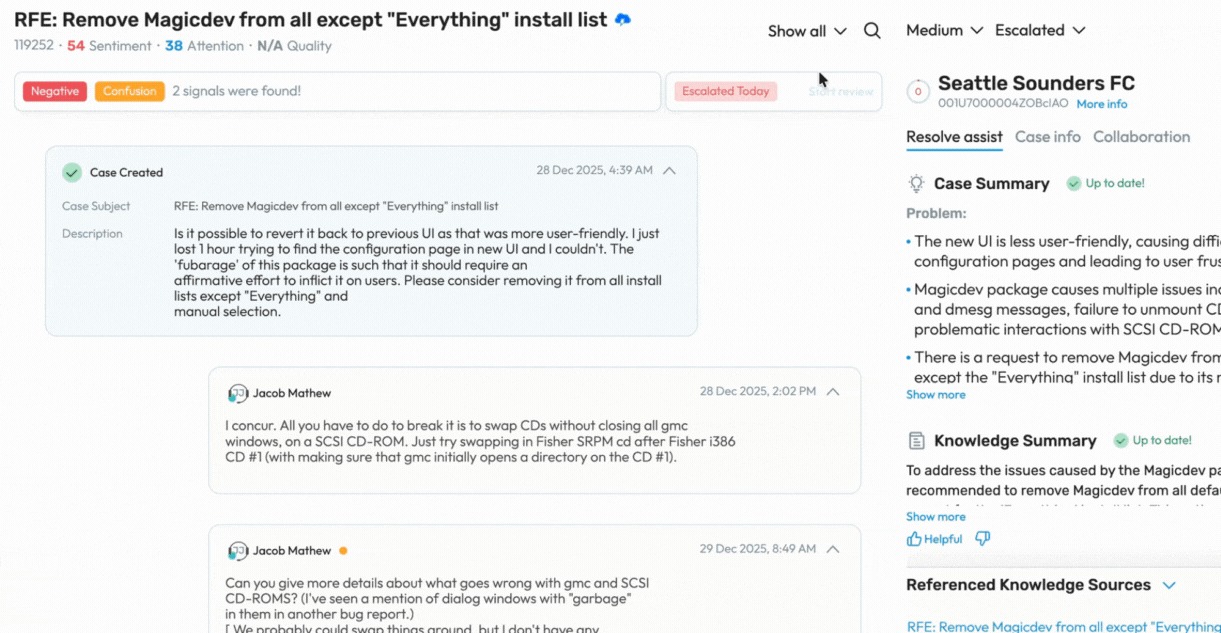
2.3 Reply Area- Customers who have write-backs enabled will see the Response area in SupportHub for all users with the “Edit case” permission.
- Users who do not have the “Edit case” permission will not see the Response area.
- Grammar assist - Users can leverage the Sapling integration to check and fix grammatical errors.
- Translation assist - Users can translate the composed response to any language. Translation feature is powered by Google Translation and can support all languages supported by Google Translation. The response to customer is send in the translated language.
- Tonality assist - Users can change the tone of the composed response (entire or part) to one of the supported tones. And they can review the tonality applied response (whole or section) and decide to apply or deny.
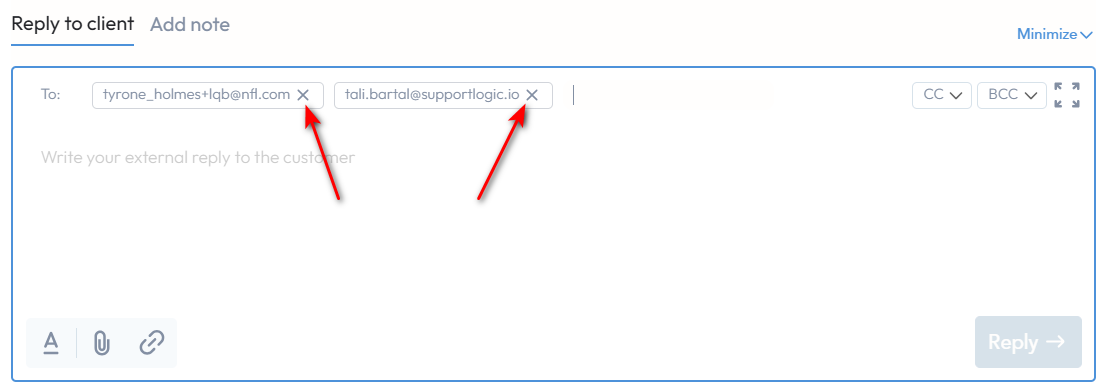
Editing the “To” Field:
When composing a response from SupportHub, you can now edit the “To” field:- Update customer recipients directly from SupportHub
- Ensure the right contacts (e.g., primary contact, CCs) receive your reply
- Reduce the need to switch back to your CRM just to change recipients
2.4 Mentions in Replies
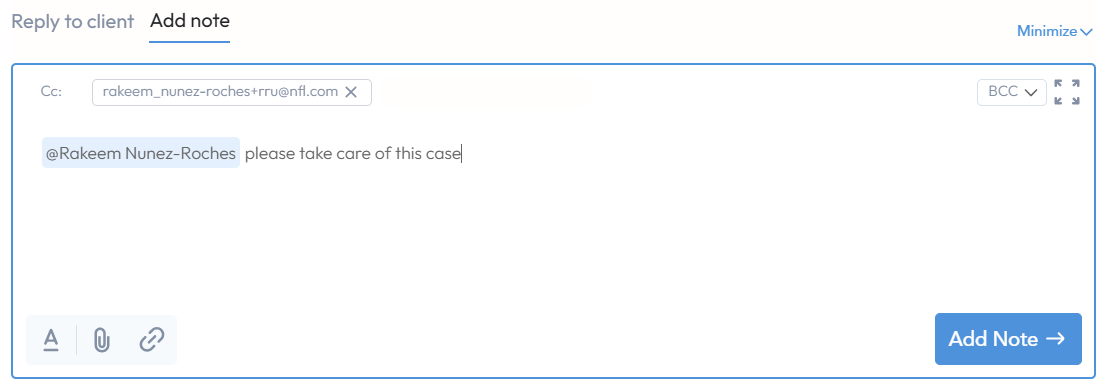
SupportHub now supports @mentions inside the Reply area:- Type @ and select a user to mention them
- Mentioned users can be notified (based on your org’s notification setup)
- Helps with faster collaboration and internal alignment on complex cases
- Users that tagged with the @ mentions in the body of the message will be automatically added to the “To” recipients row in the Reply to customer tab or the “CC” recipients row in the Add note tab.
2.5 Attachments and Hyperlinks
2.5.1 Case‑Level and Comment‑Level Attachments
You can now manage attachments more flexibly:- Case‑level attachments: Files associated with the overall case (e.g., logs, screenshots, export files).
- Comment‑level attachments: Files attached to a specific reply or internal note, providing clearer context.
Benefits:- Easier to find which file was used for which discussion point
- Cleaner case history, especially for longer‑running cases
Note: Availability and behavior may vary depending on your CRM integration and configuration.
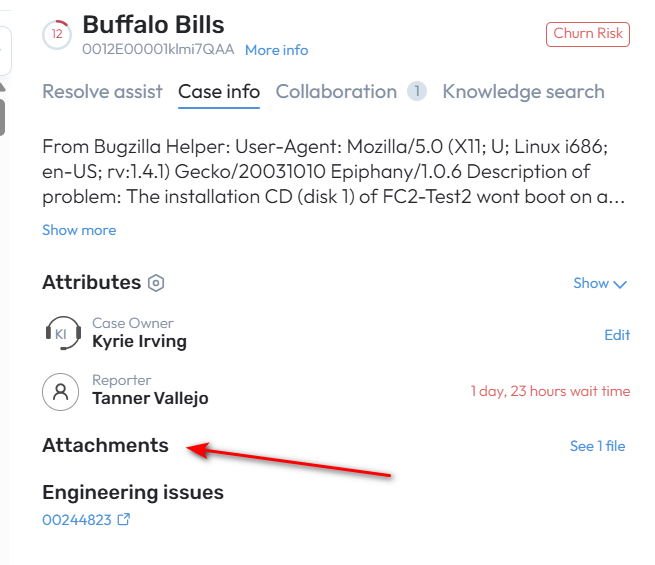
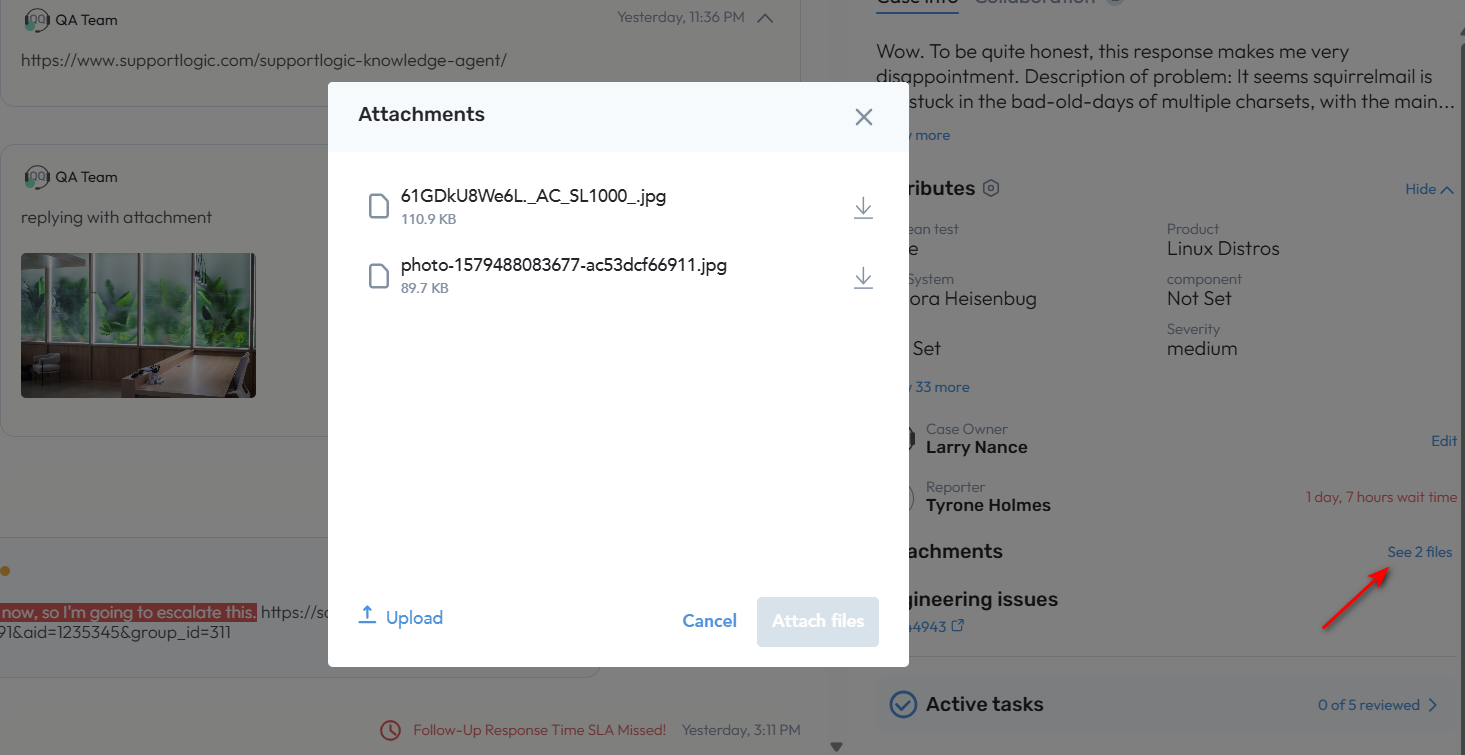
Case level attachment:- The user can see case-level attachments that come from the customer CRM.
- The user with the edit case permission can also upload attachments from the New SupportHub page.
- The user can upload one or multiple attachments at a time.
- The user who uploaded the attachment should be able to delete it.
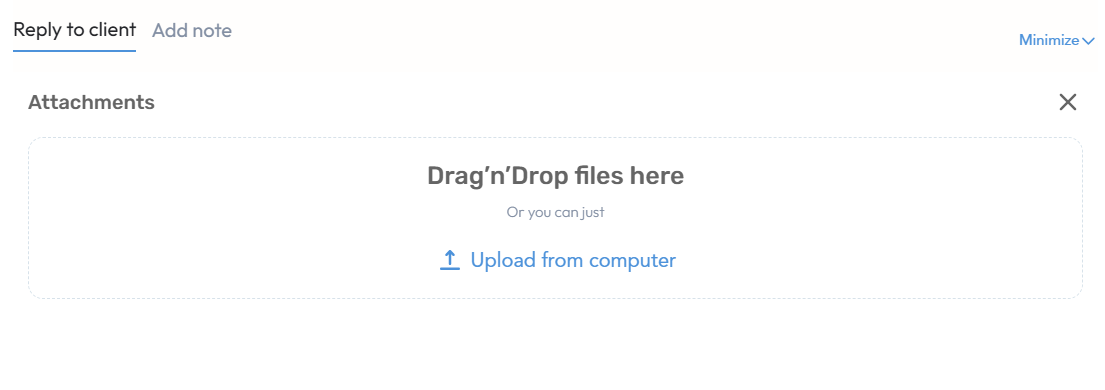
Comment level attachment: The user can also upload attachments into the Reply area using the Attachments button.
Click the Attachments button to add files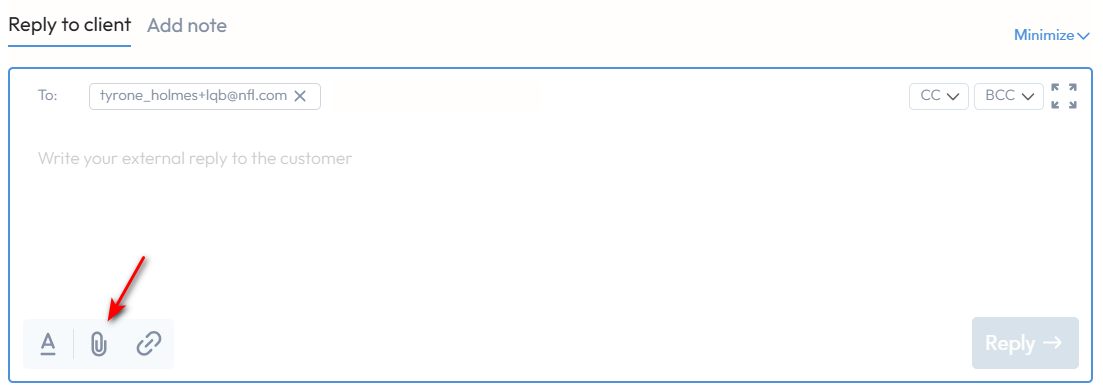
Attached file 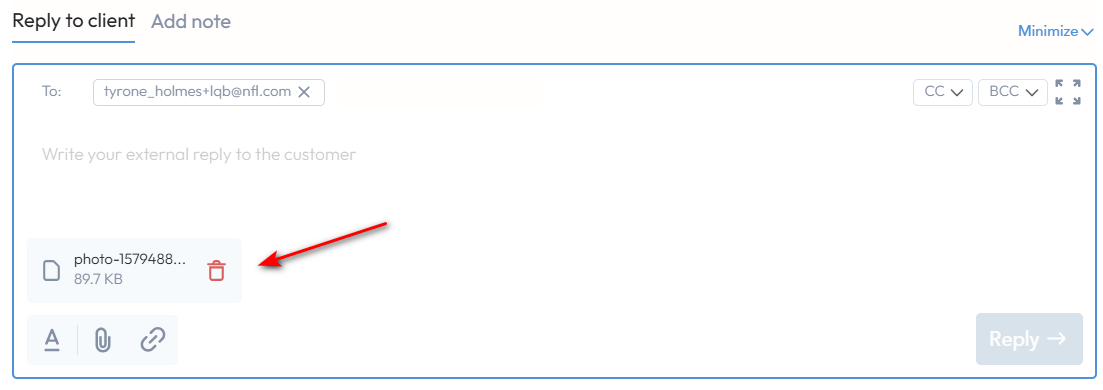
Comment added with attachment 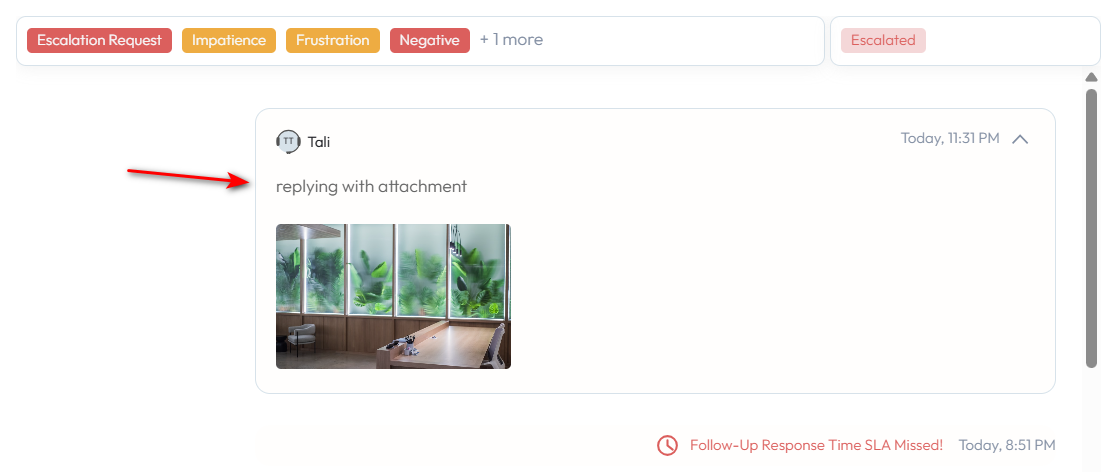
2.5.2 Hyperlinks Support
The Reply area and certain custom fields in the New SupportHub now support rich hyperlinks:- Add clickable links to documentation, KB articles, or external sites
- Keep responses concise while still guiding customers to the right resources
Use hyperlinks in supported custom fields for internal and reporting use cases
User can add comments with hyperlinks to the Response area within the SupportHub page (applicable for both Reply to Customer and Add note tabs):a. Copy/paste or type in the valid link directly inside the Response area: 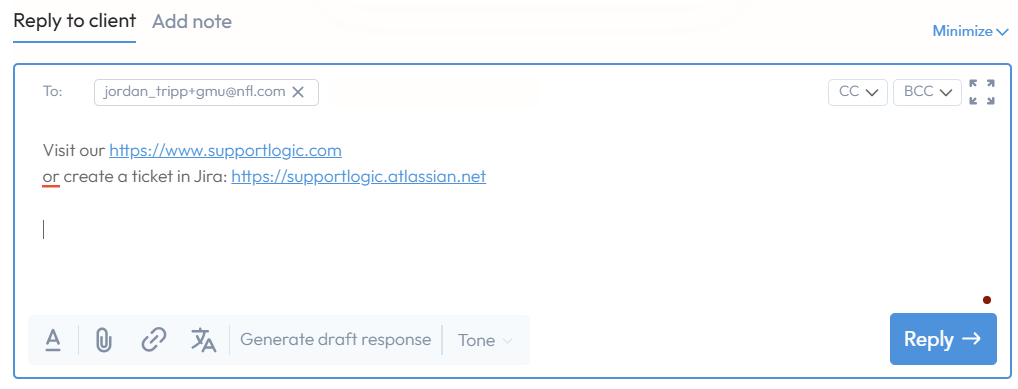
b. Use the hyperlink button in the Response area:
- Type some text inside the Response area, then select it and click on the Hyperlink button:
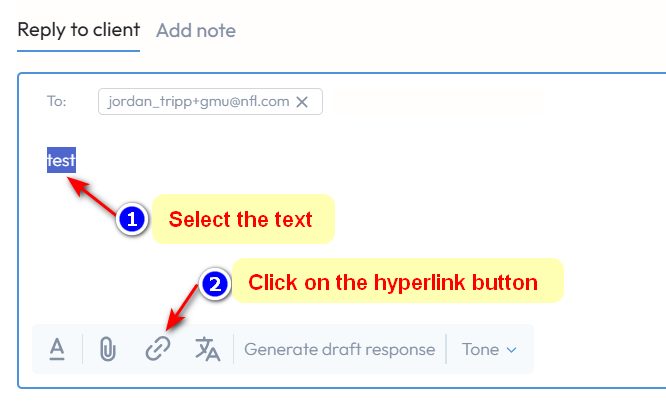
- Enter the link and click “Add” to activate the link: 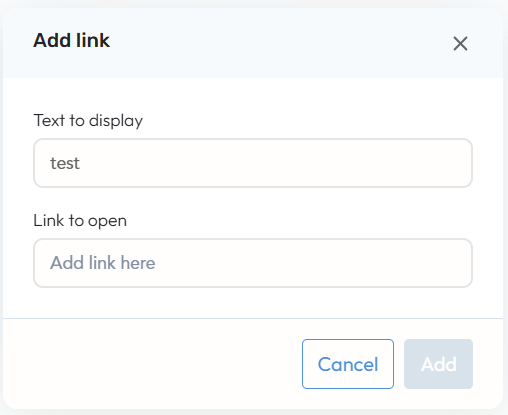
Custom Fields: Hyperlinks inside the Custom fields can arrive from the customer or be added from the SupportLogic side.
2.6 Active Tasks and Review Workflows
The New SupportHub surfaces active case‑related tasks and reviews directly in the case view, so you don’t need to jump between modules.
You can see and access review workflows for:Scores review (quality / evaluation scores) Signals review (ML signals surfaced on the case) LTE review (Likely‑to‑Escalate insights) Active escalation review Insights review Assignment review (Assign module) Account review (Expand module) QA Audit review (Elevate module)
This centralizes case workflows so engineers, managers, and auditors can: See what actions are pending on a case Take follow‑up steps from within SupportHub Ensure nothing critical is missed before closing or de‑prioritizing a case
Some of the features in Active Tasks and Review Workflow Each workflow presents the relevant details and available actions for its specific review topic. While interacting with a review, users can provide their feedback. All reviews can be accessed through the link next to their corresponding topic. Additionally, all reviews are collectively available under the new “Active tasks” tab. Completed reviews can be found via the “Reviewed” link within the “Active tasks” tab or next to their associated topic.
Access to the Active tasks list: 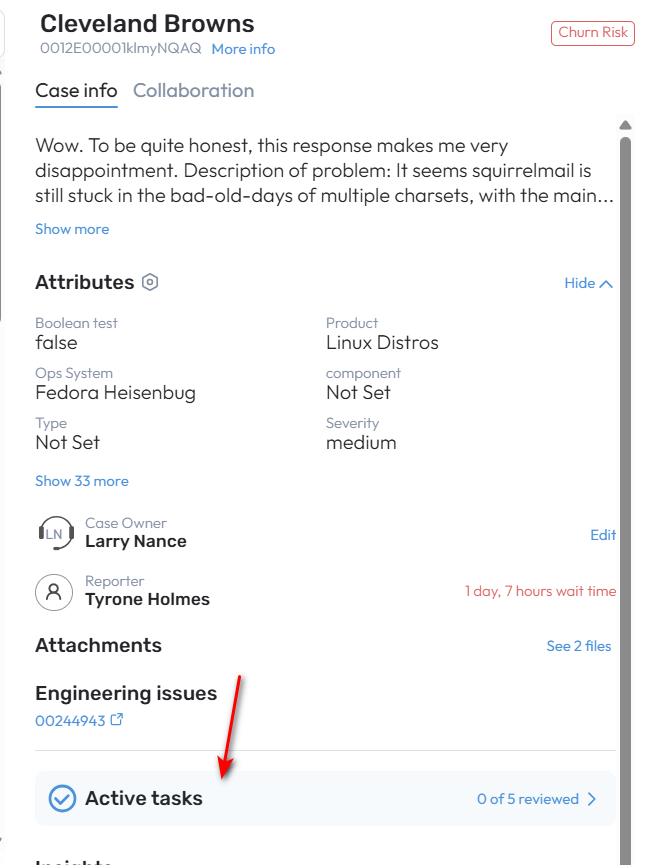
Active tasks panel 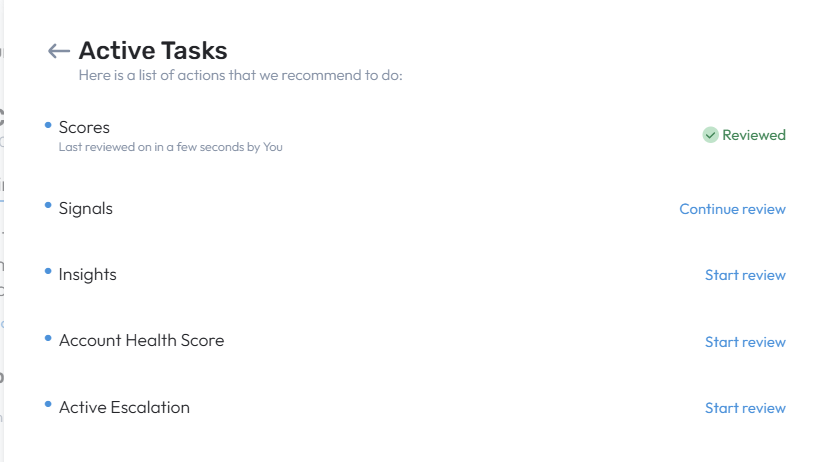
2.7 Annotations Selecting a text for annotation: 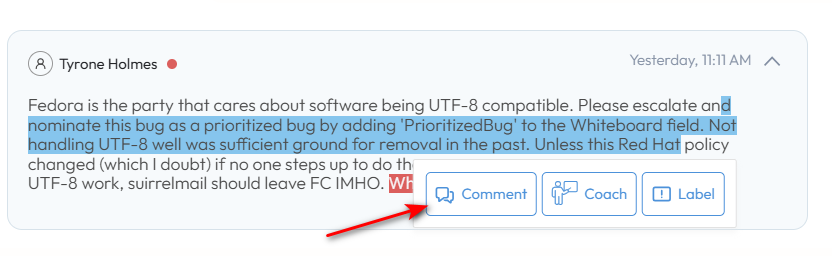
The user can tag other users, using @ mentions while typing a note. The user that added a note can Edit or Delete it.
Adding annotation (comment to the selected piece of text)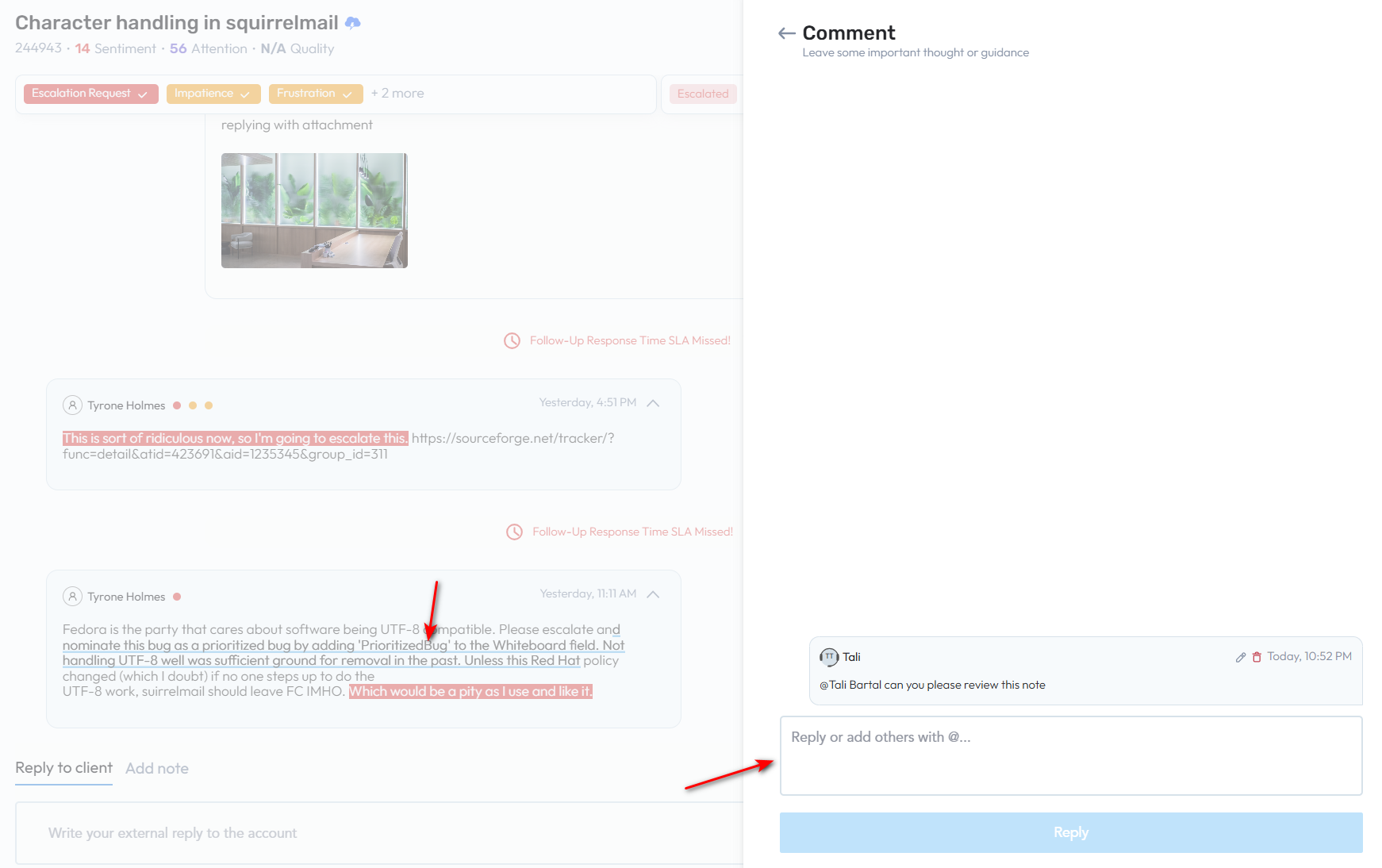
Recorded annotation will be added into the Collaboration tab The user can open the annotation to manage the conversation within it by adding more comments and discussing them with other users. When open the specific annotation, the timeline will be scrolled to the piece of text where this annotation was added.
Annotation inside the Collaboration tab: 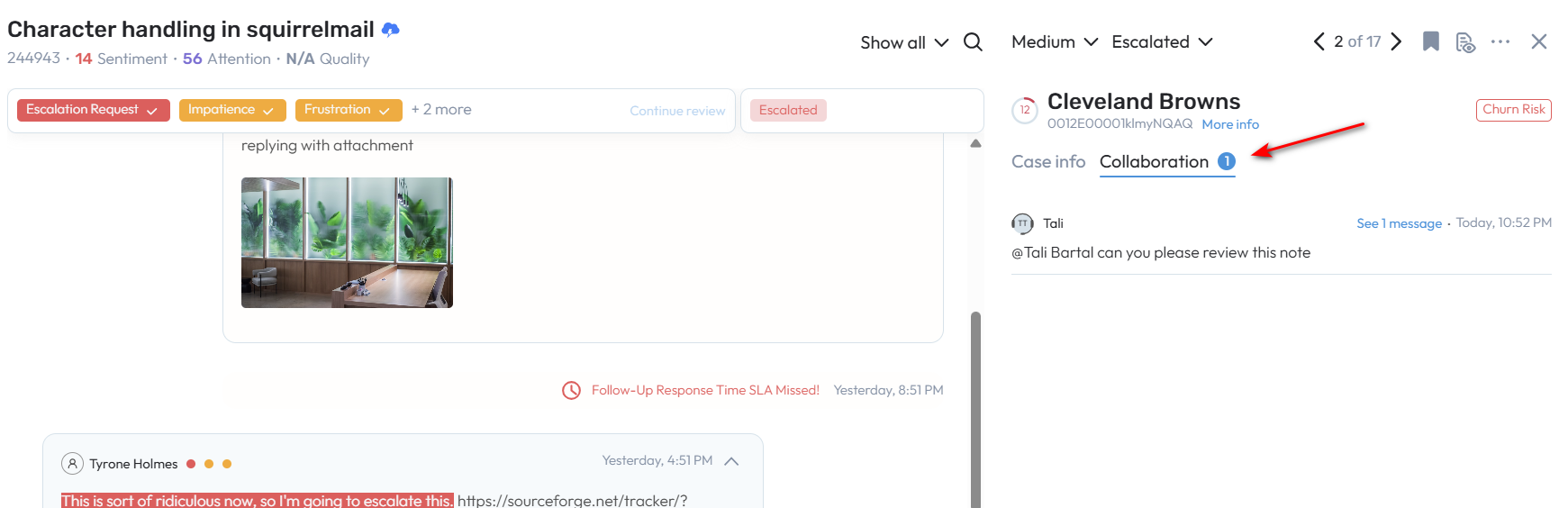
2.8 Share case The user can share the case with other users using the Share button. The channels of the collaboration will be as per application settings: the default is email, but Slack and MS teams can be also enabled. The users have to add a message while sharing a case.
Case sharing: 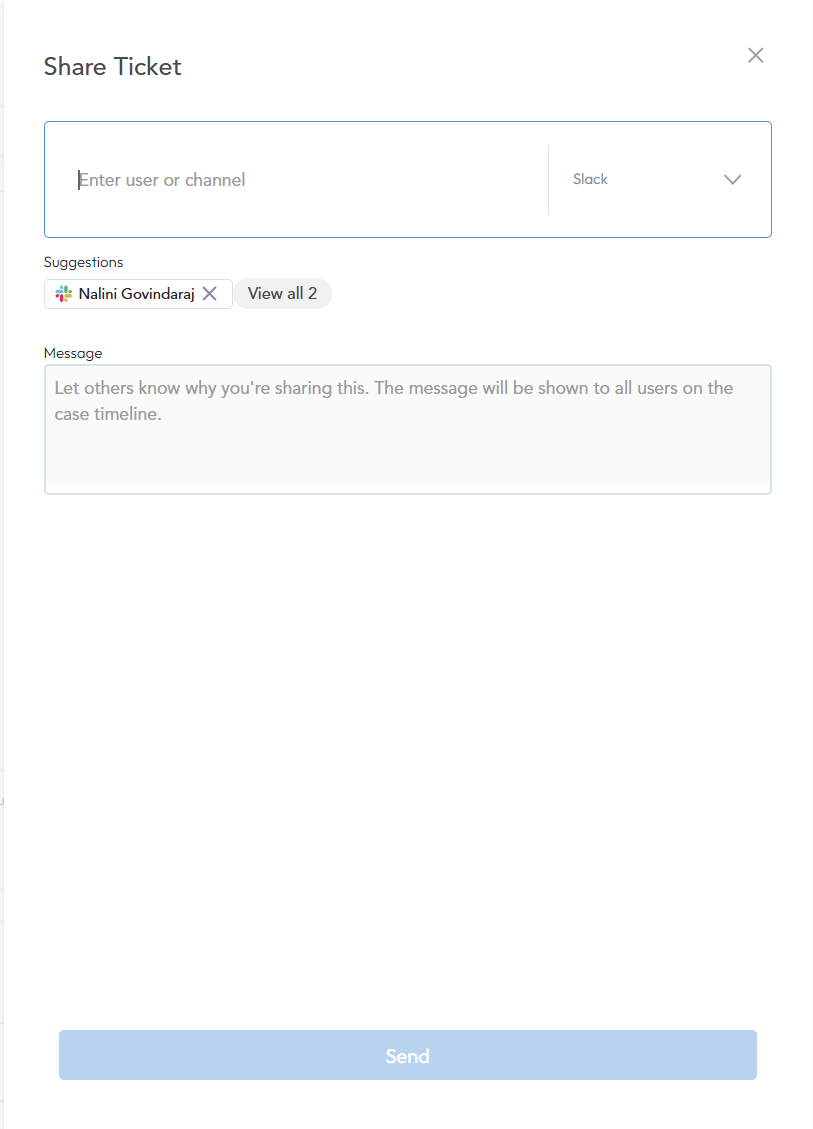
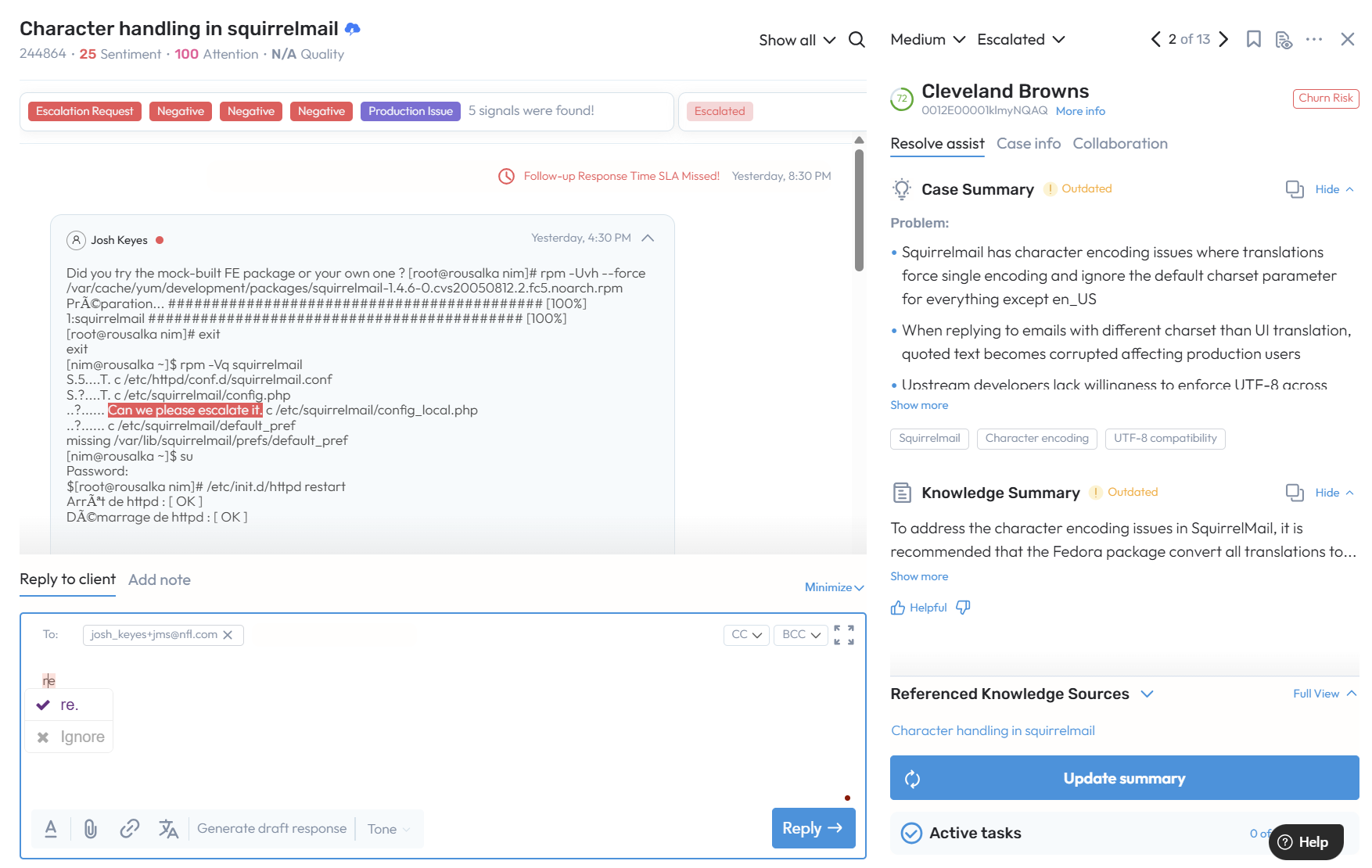
2.9 Gen AI Powered Assistance Apart from the Gen AI in Response area as stated above, Gen AI is also leveraged for Resolve Assist, like case summarization and the Knowledge Center to deliver faster, more accurate case insights.
Case Summary Gen AI can be enabled by default, or can be enabled by request 
Case Summary helps Support Agents to quickly orient themselves to the reported problem, underlying issue, current status, planned next steps and spring to action, irrespective of whether they are picking up a new case or taking handover a case from another agent or catching up on a long running case. Knowledge Summary gives Support Agents concise guidance to how to resolve the issue reported in the case. If it is a simple how to case, the agent is presented with the recommended steps to resolve the issue. If it is a complex case where there is no straight forward solution, the agent is presented with trouble shooting recommendation based on knowledge found in prior similar cases, related engineering issues, and internal knowledge sources such as confluence. The Knowledge Summary evolves as the Case progresses by taking into consideration the latest problem and status, always presenting the Support Agent with the most relevant answer to resolve the case. Alongside the Knowledge Summary, the agent can review the referenced knowledge sources from the which summary was generated to get full context and make inferences. Recommended Knowledge Sources Besides the Knowledge Summary, Support Agents will also be presented with all recommended Knowledge Sources that they can use for further research to resolve complex cases. Agents will be able to filter the knowledge by the source type such as JIRA, CRM, Confluence, Help Portal. Note: If Customer has opted out of “Knowledge Summary”, then users will be presented with Recommended Knowledge Sources instead of Knowledge Summary + Referenced Knowledge Sources.
FAQ
Q: Will my existing cases and timelines still be available in the New SupportHub?
Yes. The New SupportHub is a new interface on top of your existing case data. Case history and timelines remain available, now with improved sorting and filtering.
Q: Do I need additional licenses for Gen AI features?
Some Gen AI capabilities (such as advanced summarization and drafting) require Core SX Premium or Assist Premium. Please check with your account team or admin.
Q: Are attachments synchronized back to my CRM?
Behavior depends on your CRM and integration setup. Your admin can confirm how attachments at case or comment level sync with your CRM.
|