Objective
This article outlines how to configure case assignment settings to avoid routing cases to engineers who are close to the end of their shift, helping ensure timely ownership and resolution. To achieve this, we recommend adjusting the assignment hours for the respective shift/ engineer.
Prerequisites
Access to the SupportLogic console with permissions to manage Shift Management and Case Assignment settings.
Steps to Configure Assignment Hours
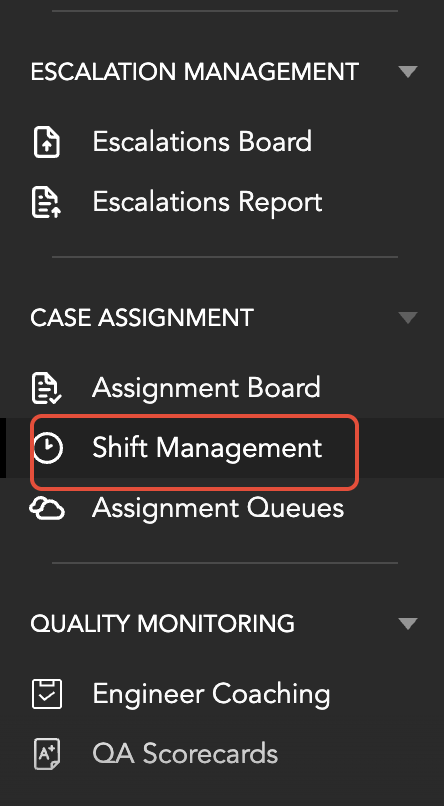
Navigate to Shift Management
Go to the Shift Management page under the Case Assignment module in the SupportLogic UI.
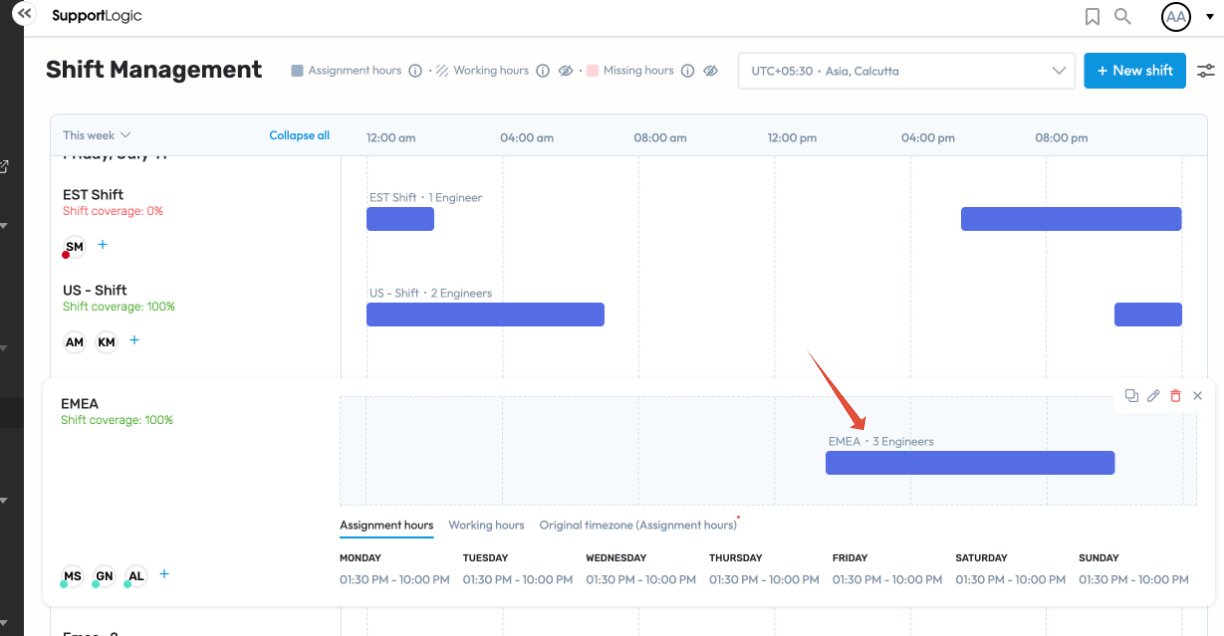
Edit the Shift Configuration
Click on the corresponding bar in the bar chart for the engineer’s shift — this will expand the detailed view.
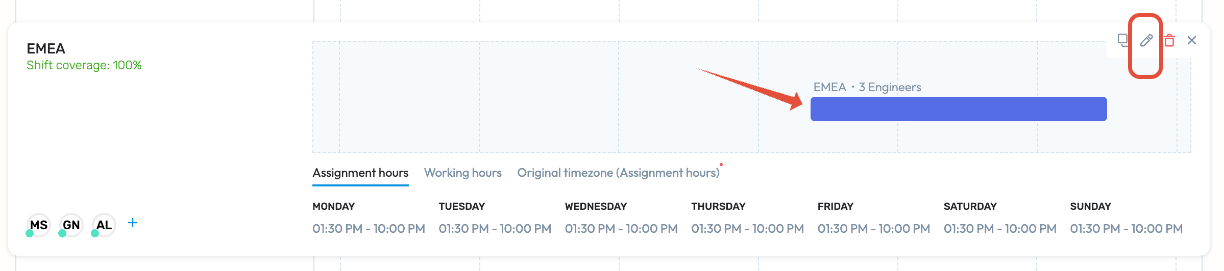
In the top-right corner, click the pencil icon to enter the edit mode
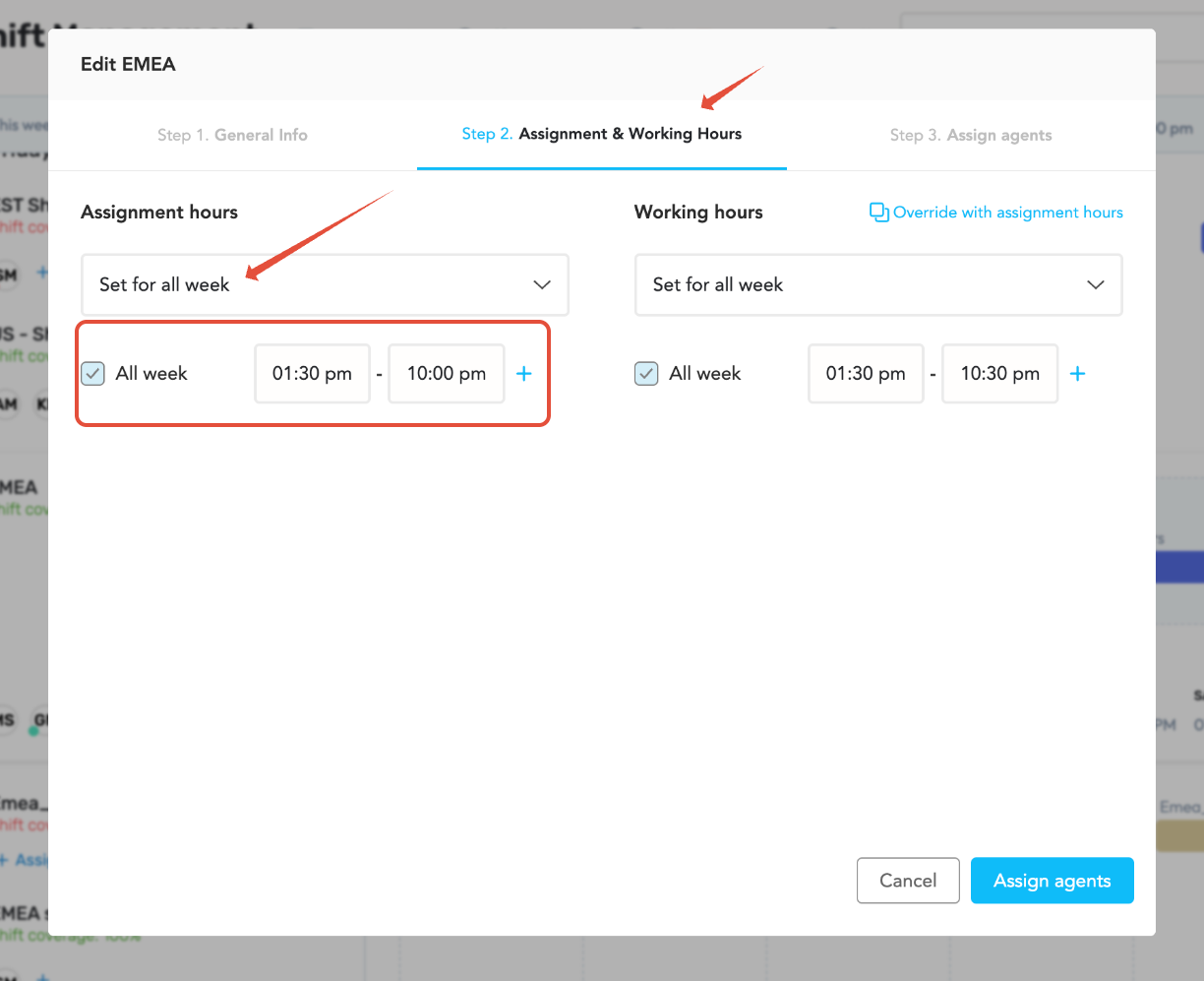
In the edit page, switch to the Assignment & Working Hours tab.
Define the Assignment Hours by specifying the start and end time within the engineer’s shift.
Choose the set for all week or set for each day based on the requirement.
These times control when the engineer is eligible to receive new case assignments.
- Move to the Assign Agents tab.
- Select the specific engineer to whom this assignment configuration should apply.
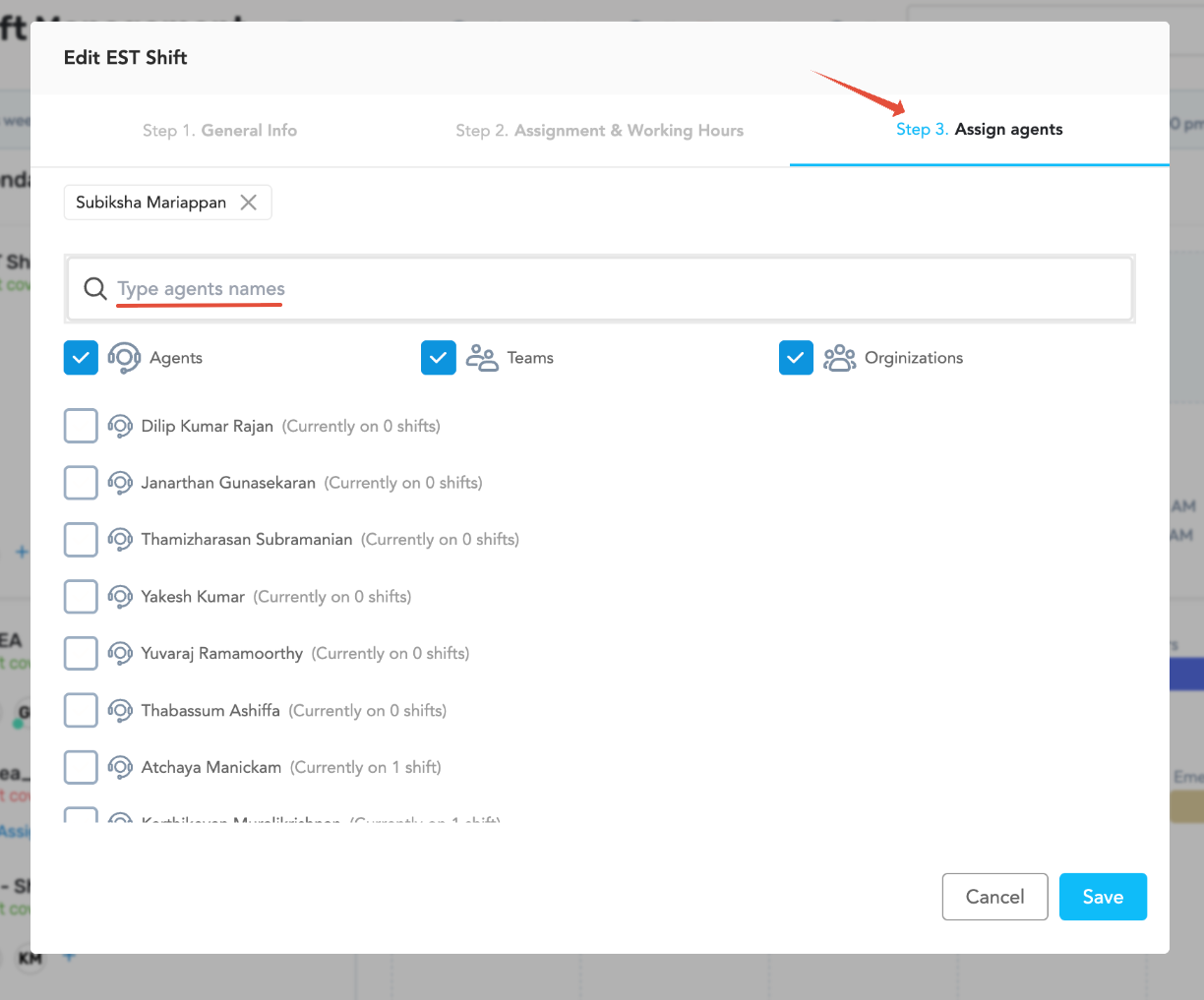
- Then click save to save the configuration made.
By limiting the end time of assignment hours, the system ensures that cases are not routed to engineers close to the end of their shifts.
Note:
Ensure working hours and assignment hours are aligned to avoid assignment gaps.
This configuration is shift-specific, so repeat the process for other shifts or agents as needed.
This setting helps avoid last-minute escalations or case abandonment due to engineers signing off.
Was this article helpful?
That’s Great!
Thank you for your feedback
Sorry! We couldn't be helpful
Thank you for your feedback
Feedback sent
We appreciate your effort and will try to fix the article